Your Badge, Now Digital

Access your office using Apple Wallet or Google Wallet. Just hold your phone near the reader to unlock. It’s easy, convenient, and private.


Follow the prompts below to add your badge to Apple Wallet or Google Wallet today.


Apple Wallet
Google Wallet

Apple Wallet Provisioning Guide & FAQs

Follow the steps below to add your mobile badge to Apple Wallet.


Download App

1. In the App Store, tap GET to install the SwiftConnect Mobile app.


1 4 Apple Swift get

Launch App

2. Tap Open to launch the SwiftConnect app.

1 5 Apple Swift open

Welcome

3.  Tap Get Started.

1 6 Apple Swift welcome

Domain Identification

4. Enter your company domain hearst.com and tap Continue.

15 HEARST Apple 1 4

Sign-in

5. Tap Sign in with Okta FastPass.

2 HEARST APPLE 2 5

Authenticate

6. Once verified, tap Close.
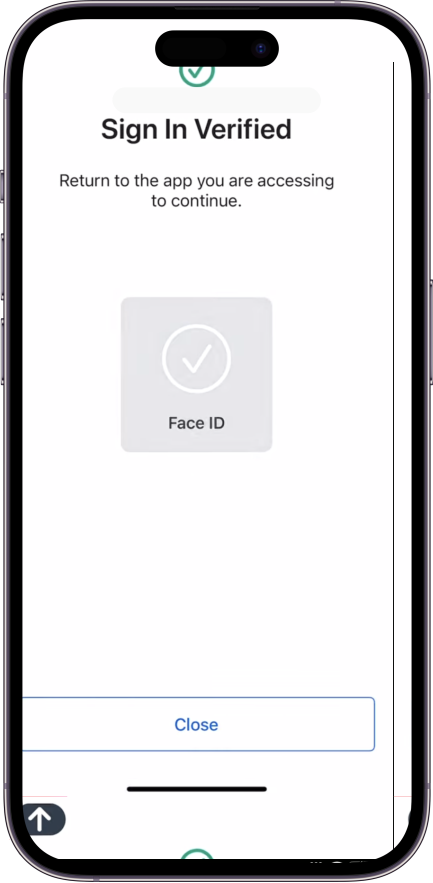
2 5 Okta Apple

Available for iPhone

7. In the SwiftConnect app, tap Add to Apple Wallet.

4 HEARST APPLE 3 7

Add Pass To Wallet

8. Tap Add.

14 HEARST APPLE 3 8

Using Cards in Wallet

9. Tap Done.

8 HEARST APPLE 3 9

Added to Wallet

10. Your pass will be added to all eligible devices, including Apple Watch.

13 HEARST APPLE 3 10

It’s Official!

11. Present your card at any reader to gain access and enjoy the mobile access experience.

10 HEARST APPLE 3 11
apple phone nfc

How to use your mobile pass with Apple iPhone

The NFC tag is located at the top center of the iPhone, on the back side, adjacent to the camera. The scan radius extends upwards and outwards from the back of your iPhone. Presenting this area of the iPhone to the reader will yield fast, high quality, read results.


Express Mode is automatically enabled – allowing you to use your employee badge in Apple Wallet without unlocking or waking your iPhone.

Vector 3

Apple Wallet FAQs

Employee Badge in Apple Wallet FAQs
What do I need to get started?
I am not having success adding my employee badge in Apple Wallet. Who can help me?
On how many devices can I use my employee badge in Apple Wallet?
Can I use my employee badge in Apple Wallet if my iPhone needs to be charged?
If I have a passcode on my phone, will I have to enter it every time?
Can I use my employee badge in Apple Wallet without cellular or wifi signals?
What happens if I lose my iPhone or Apple Watch? If I find it afterwards?
What happens if I get a new iPhone or Apple Watch?
How do I use my employee badge in Apple Wallet to access the building from my phone?
How do I delete my employee badge in Apple Wallet?
I am getting the error “Could not add card to wallet.” What should I do?
I just got a new Apple Watch, but I cannot add my employee badge to Apple Wallet. The app says, “Added to wallet.” What do I do?
What if I have additional questions?
Does the SwiftConnect mobile app track my location?
Does the employee badge in Apple Wallet track my location?
Can my employer see or track my activities on my device?
What data is collected by SwiftConnect?
How is my information protected?
Where can I use my digital Hearst Employee Badge?

Google Wallet Provisioning Guide & FAQs

Follow the steps below to add your mobile badge to Google Wallet.


Download App

1. In Google Play, tap Install to get the SwiftConnect Mobile app.


4 Google app download

Welcome

2. Open the SwiftConnect app, and tap Get started.


5 Google Welcome

Domain Identification

3. Enter company domain hearst.com, tap Continue.

12 HEAST GOOGLE 1 4

Sign-in 

4. Tap Sign in with Okta FastPass.


3 HEARST GOOGLE 2 5

Authenticate

5. Once verified, tap Close.

google okta 12

Google Wallet

6. Tap Add to Google Wallet.


5 HEARST GOOGLE 3 7

Accept Terms

7. Tap Accept & continue.

1 HEARST GOOGLE 3 8

Added to Wallet

8. Tap View in Wallet.

7 HEARST GOOGLE 3 9

Success!

9. Your badge is now added to your Google Wallet and is ready to use.


11 HEARST GOOGLE HERO
Google Android NFC

How to use your mobile pass with Android device

When presenting your Android device to a reader, please note that the NFC tag is located on the back of the phone (not visible), usually positioned near the middle. Placing this particular section of the phone near the reader will increase the success rate of reads. For more information on where the NFC tag may be located on your specific Android device, please refer to the following guides.

Samsung NFC Detection Area
Google NFC Detection Area

Vector 3

Corporate badge in Google Wallet FAQs

What do I need to get started?
I can not add my corporate badge, what should I do?
I am not having success adding my corporate badge in Google Wallet. Who can help me?
How do I use my corporate badge in Google Wallet to access the building from my Android?
I want to transfer my corporate badge to my new phone, how would I do that?
I lost my phone! What should I do?
Can I use my corporate badge in the SwiftConnect Mobile App without cellular or wifi signal?
How do I delete my corporate badge?
What if I have additional questions?
Does the SwiftConnect mobile app track my location?
Does the corporate badge in the SwiftConnect Mobile App track my location?
Can my employer see or track my activities on my device?
What data is collected by SwiftConnect?
How is my information protected?
Where can I use my digital Hearst Corporate Badge?